
Uploading a large theme, importing a big file, or running a heavy plugin can fail with errors like "file exceeds upload_max_filesize" or a blank page. The fix is usually simple: raise your PHP limits. On ZedgeHost you can do it yourself in cPanel.
✅ Before you start
- Log in to cPanel
- Know which limit you need — the error message usually names it (memory, upload size or execution time)
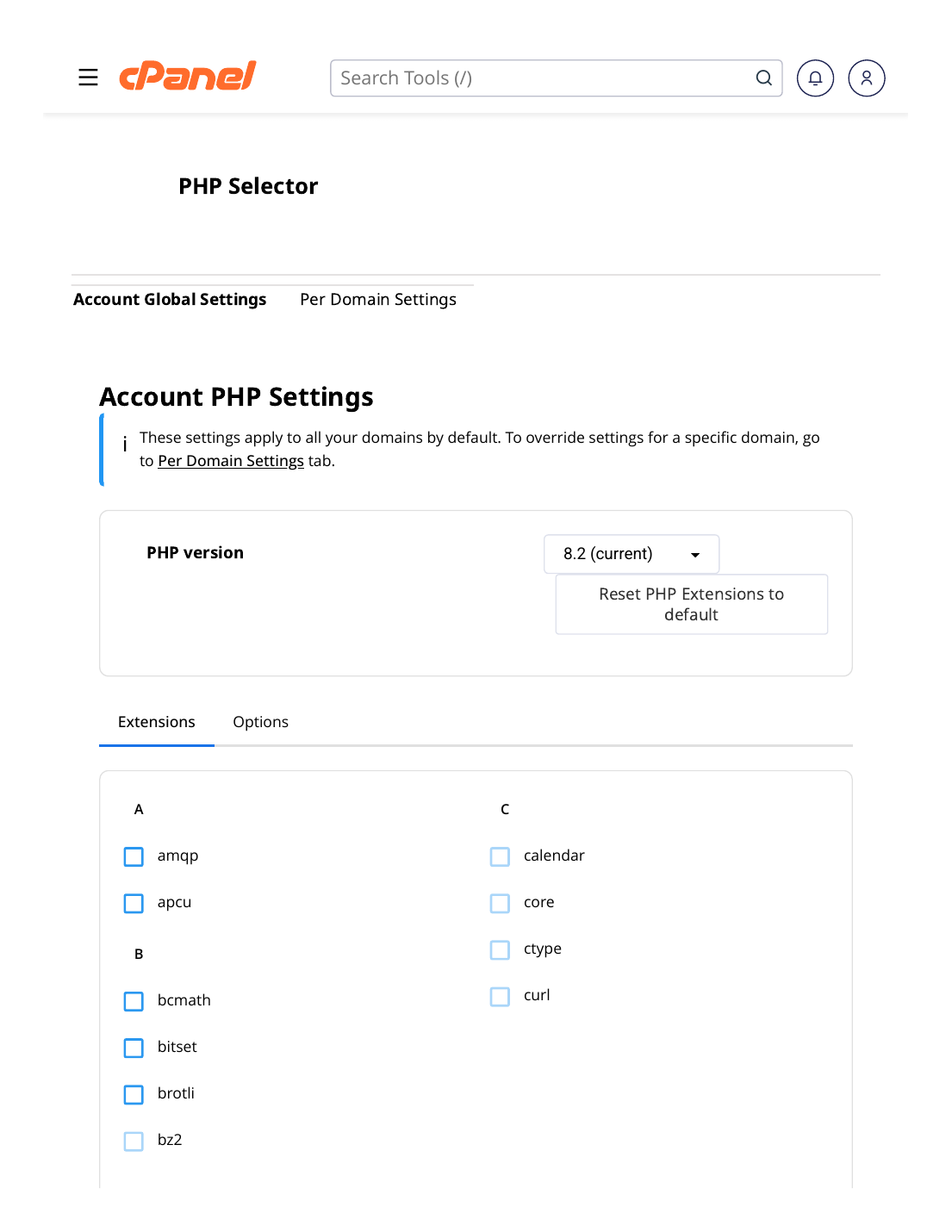
Steps
- Log in to cPanel and scroll to the Software section.
- Click "Select PHP Version".
- Open the "Options" tab at the top of the page.
- Change the value you need — click the current value and choose or type the new one:
memory_limit How much memory a script may use (try 256M for heavy plugins) upload_max_filesize Largest single file you can upload (try 64M or 128M) post_max_size Keep this equal to or larger than upload_max_filesize max_execution_time How long a script may run, in seconds (try 120 or 300) - Done — changes on this screen are applied automatically, there is no save button to hunt for.
✅ Result: Your new limits are active immediately. Go back to your website and retry the upload or import that failed before.
Good to know
- The limits work as a chain: memory_limit ≥ post_max_size ≥ upload_max_filesize. If one is smaller than the next, the smallest one wins.
- Raising limits helps with uploads and imports — but if your site is slow all the time, the real problem is elsewhere (see "How to Speed Up WordPress").
⚠ Common mistakes & fixes
- Raised upload_max_filesize but uploads still fail: post_max_size is still smaller. Raise it too.
- Edited MultiPHP INI Editor instead: that is a different tool. Use Select PHP Version → Options so the setting matches your PHP version screen.
- Setting extreme values "just in case": very high limits let a broken script eat resources for longer. Raise only what the error asks for.
Related articles
- How to Change Your PHP Version
- Fix: 503 Error / Resource Limit Reached
- How to Install WordPress in 1 Click