
A redirect sends visitors from one address to another automatically — for example from an old page to a new one, or from yourdomain.com to www.yourdomain.com. Setting one up in cPanel takes a minute and needs no code.
✅ Before you start
- Log in to cPanel
- Know both addresses: the one people visit (from) and the one they should land on (to)
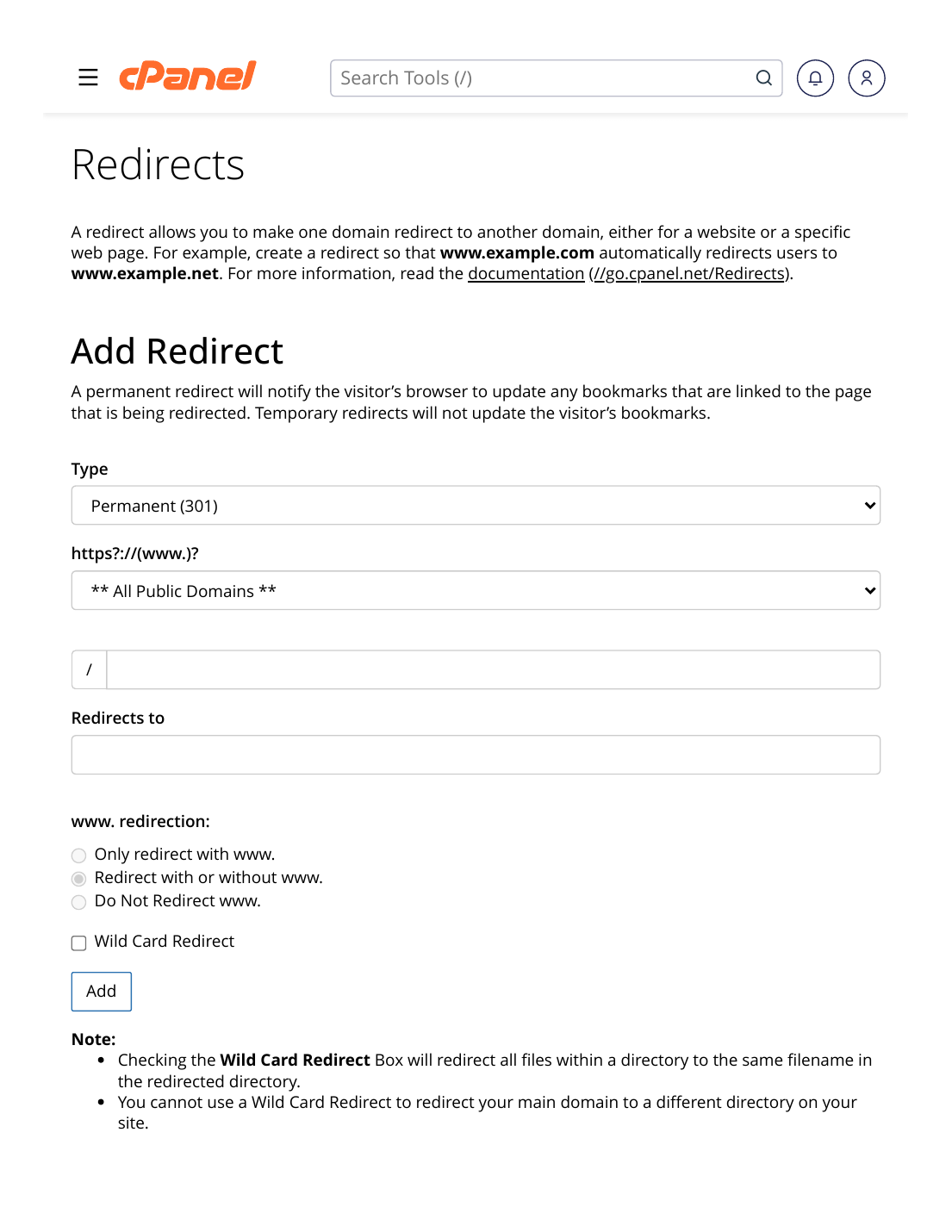
Steps
- Log in to cPanel and scroll to the Domains section.
- Click "Redirects".
- Choose the type: Permanent (301) if the move is forever (best for SEO), or Temporary (302) for a short-term redirect.
- Select the domain and type the page path after it (leave the path empty to redirect the whole domain).
- Type the destination URL in "Redirects to" — the full address, including https://
- Choose the www behavior — "Redirect with or without www" is the safest choice for most people.
- Click "Add".
✅ Result: The redirect is active immediately. Test it: open the old address in a private/incognito window and you should land on the new one.
⚠ Common mistakes & fixes
- "Too many redirects" error: two redirects are sending visitors to each other in a circle (a common clash with WordPress www/non-www settings). Remove one of them — in cPanel or in WordPress — so only one rule controls the address.
- Redirect works for the homepage but not inner pages: you redirected only the root path. Add the path, or use a wildcard redirect option carefully.
- Testing in your normal browser: browsers cache redirects aggressively. Always test in a private window, or you may see the old result.
Related articles
- How to Create a Subdomain
- How to Force HTTPS on Your Website
- Fix: 404 Not Found Error