
Running out of disk space quietly breaks things — emails stop arriving, uploads fail, backups cannot be made. Checking your usage takes a minute, and cPanel shows you exactly which folder or mailbox is eating the space.
✅ Before you start
- Log in to cPanel
Quick check (10 seconds)
On the cPanel home page, the sidebar statistics show your disk usage, bandwidth, email accounts and more — used vs. total, at a glance. If disk usage is close to your limit, dig deeper with the steps below.
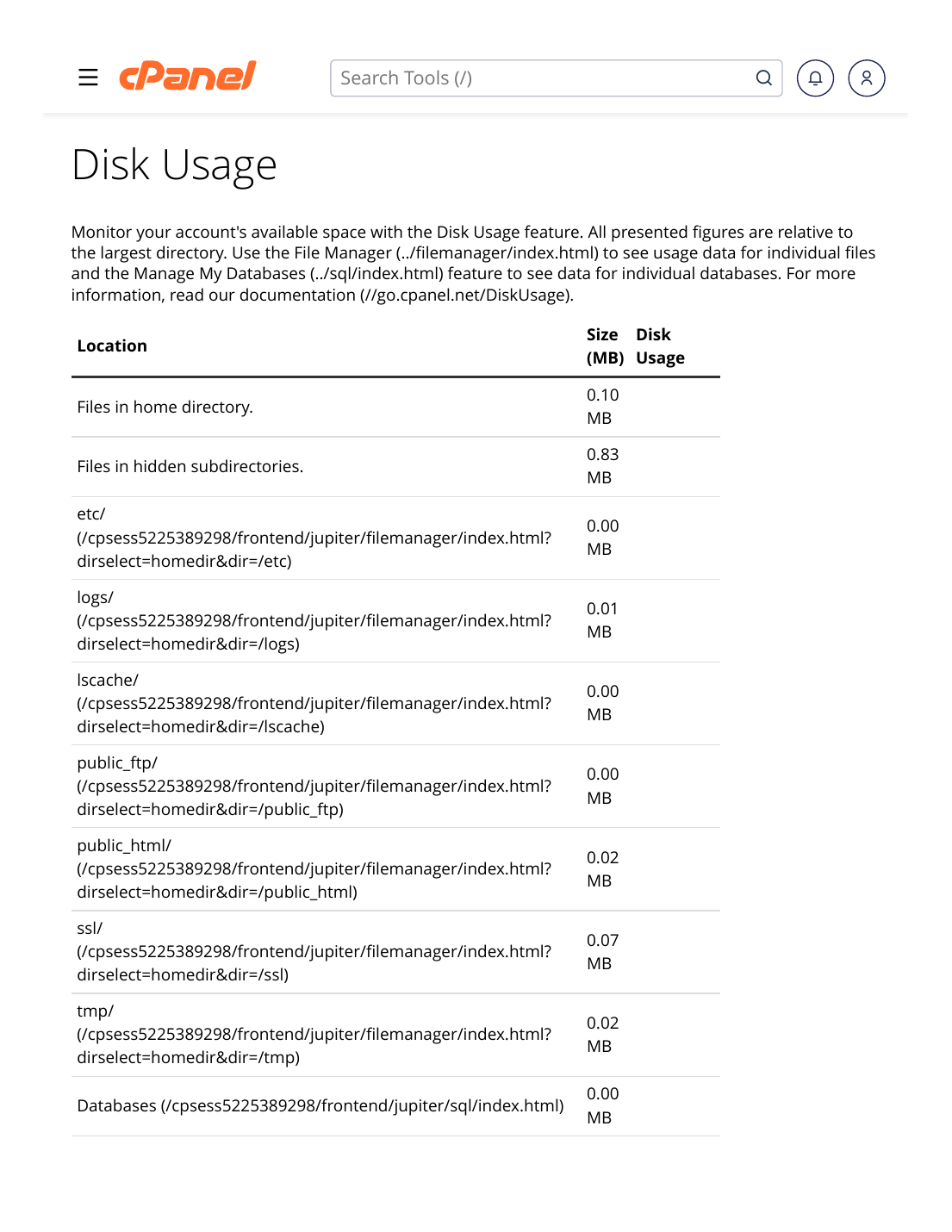
Steps: find what is using the space
- Log in to cPanel → Files section → Disk Usage.
- Read the breakdown — the page lists how much space each folder uses (public_html, mail, backups, tmp and others).
- Click a folder name to open it in File Manager and see the large files inside.
- For bandwidth: go to the Metrics section → Bandwidth to see usage by day and month, per service (web, email, FTP).
✅ Result: You now know exactly where your space and bandwidth go — the usual heavy items are old backups stored in the account, big email mailboxes, and website error logs.
Space-saving tips: download old full backups to your own computer and delete the server copies; empty the Trash folder in File Manager; delete email you no longer need (see Email Disk Usage in the Email section); and clear old error_log files from public_html.
⚠ Common mistakes & fixes
- Deleting files you don't recognize inside public_html: if a folder belongs to WordPress (wp-content, wp-includes…), deleting it breaks the site. Free space from backups, trash and email first.
- Disk shows full but you deleted a lot: empty File Manager's Trash — deleted files still count until the trash is emptied.
Related articles
- Fix: Disk Quota Exceeded — How to Free Space
- How to Take a Full cPanel Backup
- cPanel Tour: Understanding the Interface