
A full cPanel backup is a complete copy of your hosting account — website files, databases, email accounts and settings — in one file. Make one before big changes (updates, redesigns, migrations), and keep a copy on your own computer.
✅ Before you start
- Log in to cPanel
- Make sure your account has enough free disk space for the backup file (check Disk Usage first) — the backup itself takes space while it is created
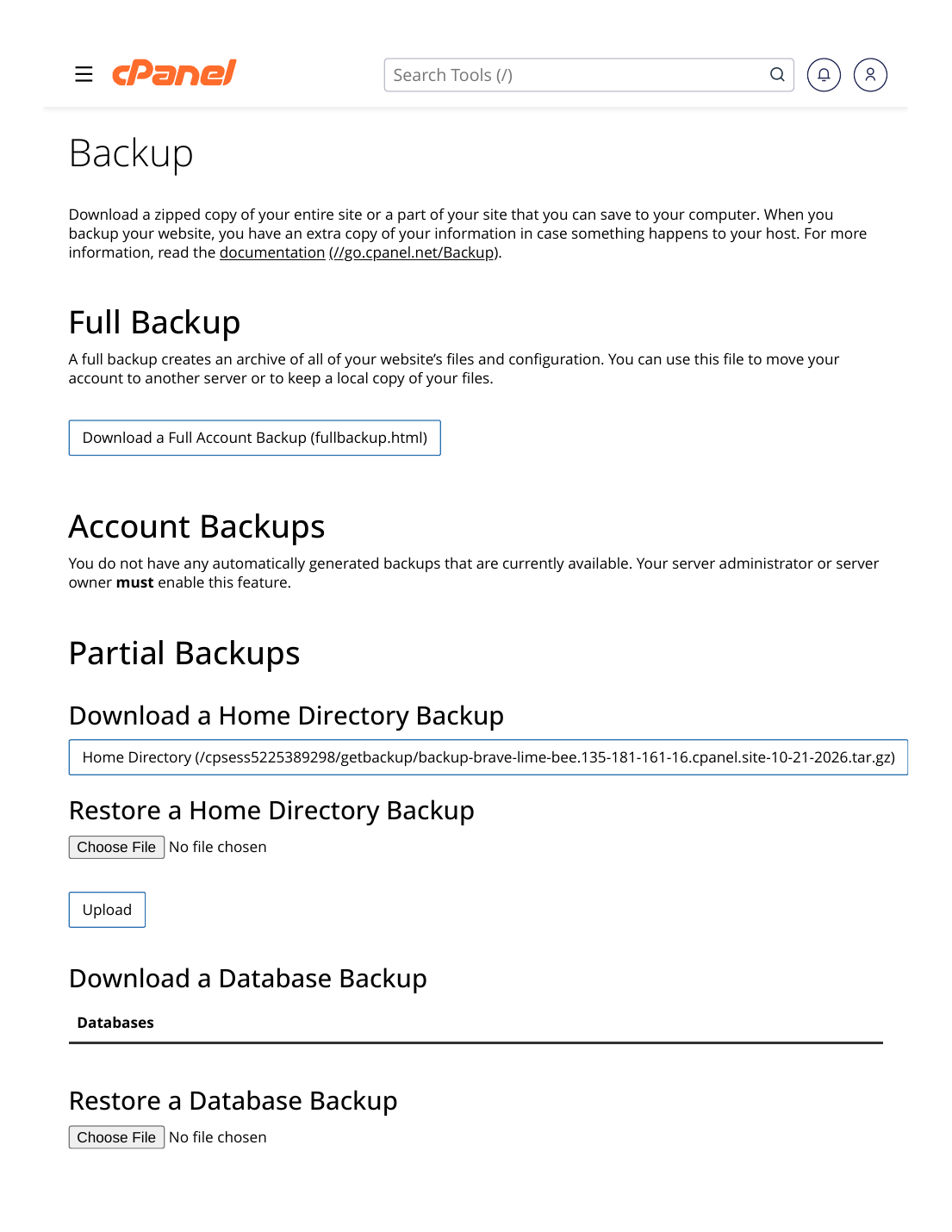
Steps
- Log in to cPanel → Files section → Backup.
- Click "Download a Full Account Backup".
- Choose the backup destination: "Home Directory" is the normal choice.
- Enter your email address so cPanel notifies you when the backup is finished.
- Click "Generate Backup" and wait — a small site takes minutes, a large one can take much longer.
- Download the finished backup file from the same page (it appears under "Backups Available for Download") to your computer.
- Delete the backup from the server afterwards if disk space is tight — keep your downloaded copy safe.
✅ Result: You have a complete safety copy of your account. If anything ever goes badly wrong, this file is what support needs to bring everything back (see "How to Restore a Backup").
Good to know: the Backup Wizard (also in the Files section) does the same job with a guided step-by-step flow — and it can also make partial backups (just the home directory, just databases, or just email forwarders/filters) when you don't need everything.
⚠ Common mistakes & fixes
- Backup never appears / fails silently: usually the account is out of disk space. Free space first (see "How to Check Disk Space"), then generate again.
- Keeping many old backups on the server: they fill your quota fast. Download and delete — one recent copy on the server is plenty.
- Restoring a full backup yourself: customers cannot restore a FULL account backup from cPanel — that needs server admin help. Send us the file via a support ticket; partial restores (files/databases) you can do yourself with the Backup Wizard.
Related articles
- How to Restore a Backup
- How to Check Disk Space and Bandwidth Usage
- How to Back Up Your WordPress Site