
Something broke and you have a backup? Good — that's exactly what backups are for. This guide restores parts of your account (website files, a database, email forwarders/filters) with the Backup Wizard, which is the restore you can do yourself.
✅ Before you start
- Log in to cPanel
- Have the backup file on your computer (a partial backup you made earlier, or the matching part from a full backup)
- Understand: restoring overwrites the current files/database with the backup's older state — anything changed after the backup date will be lost
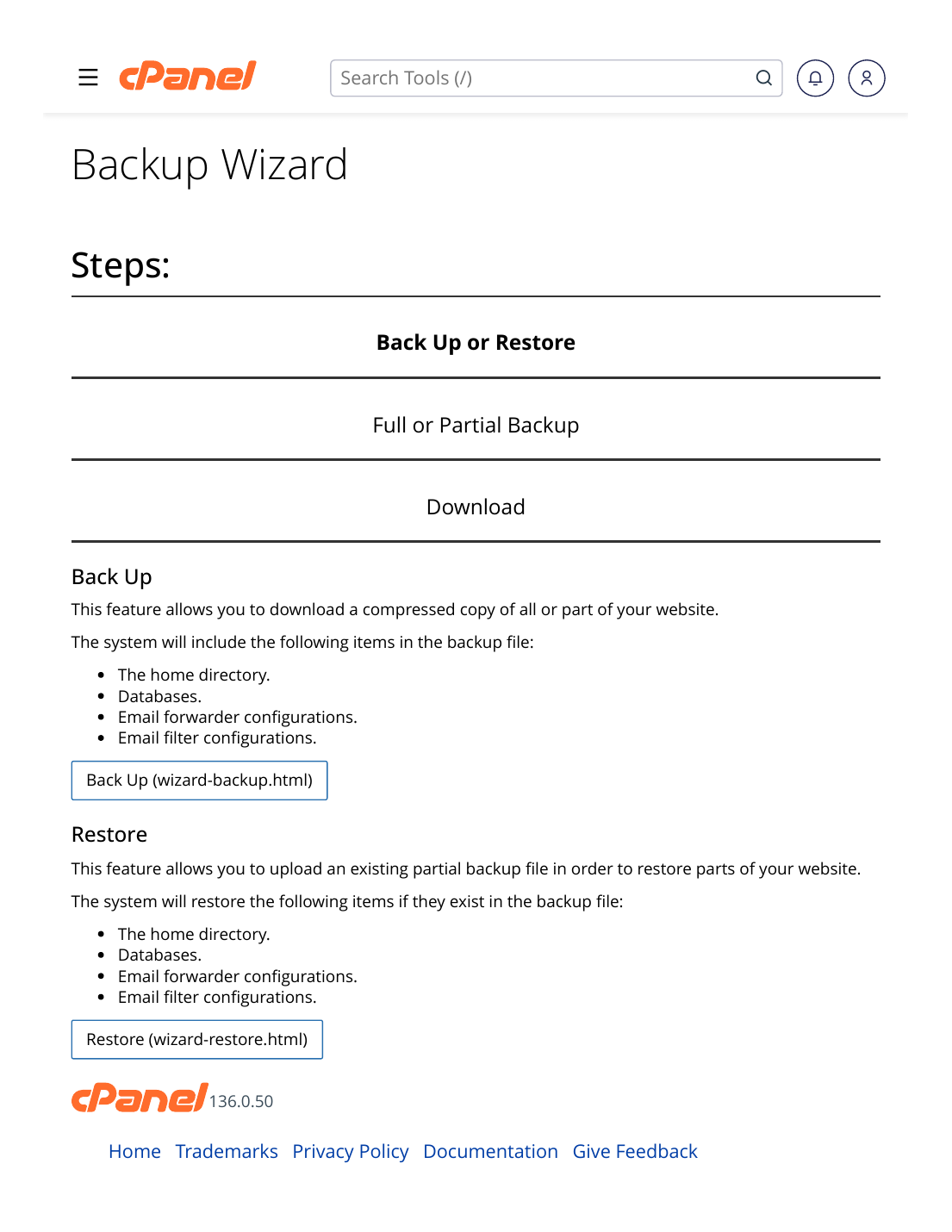
Steps
- Log in to cPanel → Files section → Backup Wizard.
- Click "Restore".
- Choose what to restore: Home Directory (website files), MySQL Databases, or Email Forwarders & Filters.
- Choose the backup file from your computer and click Upload.
- Wait for the restore to finish — the page lists the items as they are restored.
- Test your website in a private browser window and check the pages that were broken.
✅ Result: The restored part of your account is back to the state of the backup. If you restored files but the site still misbehaves, the database may also need restoring from the same date — the two work as a pair.
Restoring a FULL account backup: a complete full-backup restore can only be done by the server admin. Open a support ticket, tell us where the backup file is (upload it to your account or keep it in your home directory), and we will restore it for you.
⚠ Common mistakes & fixes
- Restoring files but not the database — or the other way round: a WordPress site is files + database together. Restore both from the same backup date.
- Uploading a full backup into the partial restore: the Wizard restore expects the partial file for the part you chose. A full-account file needs the support route above.
- Restoring, then the problem comes back: the backup itself may contain the problem (for example a hacked site backed up after the hack). Restore an older, clean backup — and then follow "What to Do If Your Website Gets Hacked".
Related articles
- How to Take a Full cPanel Backup
- How to Use phpMyAdmin (Import & Export a Database)
- What to Do If Your Website Gets Hacked