
A forwarder copies every email sent to one address straight into another inbox — for example, [email protected] delivered into your personal Gmail. No separate mailbox, no extra login, no quota used.
✅ Before you start
- Log in to cPanel
- Know both addresses: the one people will write to (from) and the inbox that should receive the copies (to)
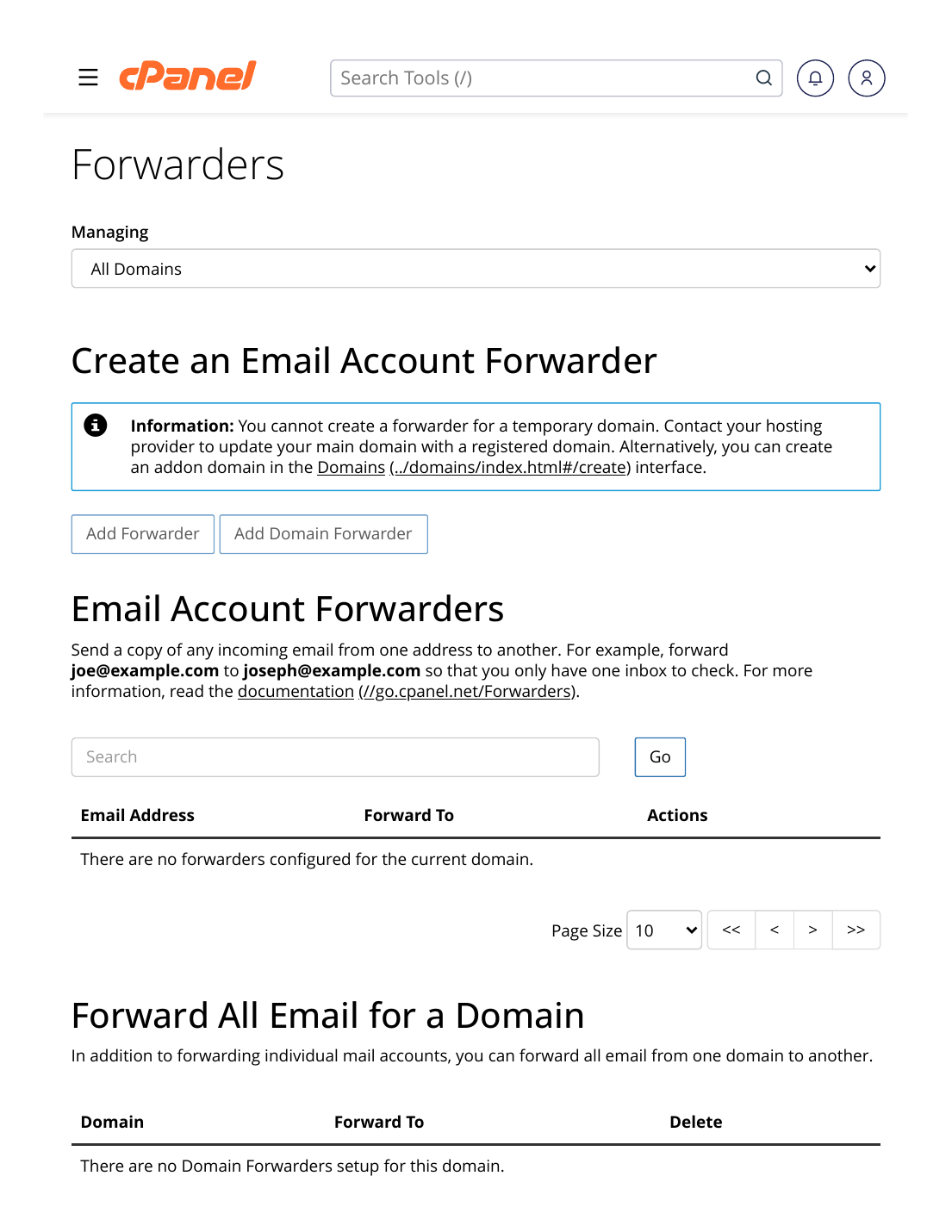
Steps
- Log in to cPanel → Email section → Forwarders.
- Click "Add Forwarder".
- Type the address to forward — the name before the @, and choose the domain.
- Choose "Forward to Email Address" and type the destination inbox.
- Click "Add Forwarder".
✅ Result: From now on, mail sent to that address lands in the destination inbox within moments. Test it: send an email from another account and watch it arrive.
Useful variations on the same page
- Forward AND keep a mailbox: if the same address also exists as a real Email Account, mail is delivered to BOTH the mailbox and the forward destination.
- Domain forwarder: "Add Domain Forwarder" forwards ALL addresses of one domain to another domain — handy when a business owns two domain names.
⚠ Common mistakes & fixes
- Forwarding loops: never forward A → B and B → A. Mail will bounce between them and get dropped.
- Spam follows the forward: junk sent to the forwarded address is forwarded too — and the receiving provider may blame YOUR domain. Use forwarders for role addresses, not as a spam shield.
- Expecting old emails to forward: forwarders only affect mail that arrives AFTER you create them.
Related articles
- How to Create a Professional Email (you@yourdomain)
- How to Set an Autoresponder (Out-of-Office)
- How to Access Webmail