
Going on holiday, or just away from email for a few days? An autoresponder replies automatically to everyone who writes to you — "Thanks for your email, I'm away until Monday" — so nobody thinks you're ignoring them.
✅ Before you start
- Log in to cPanel
- Write your message first: when you'll be back, and who to contact for urgent matters
Steps
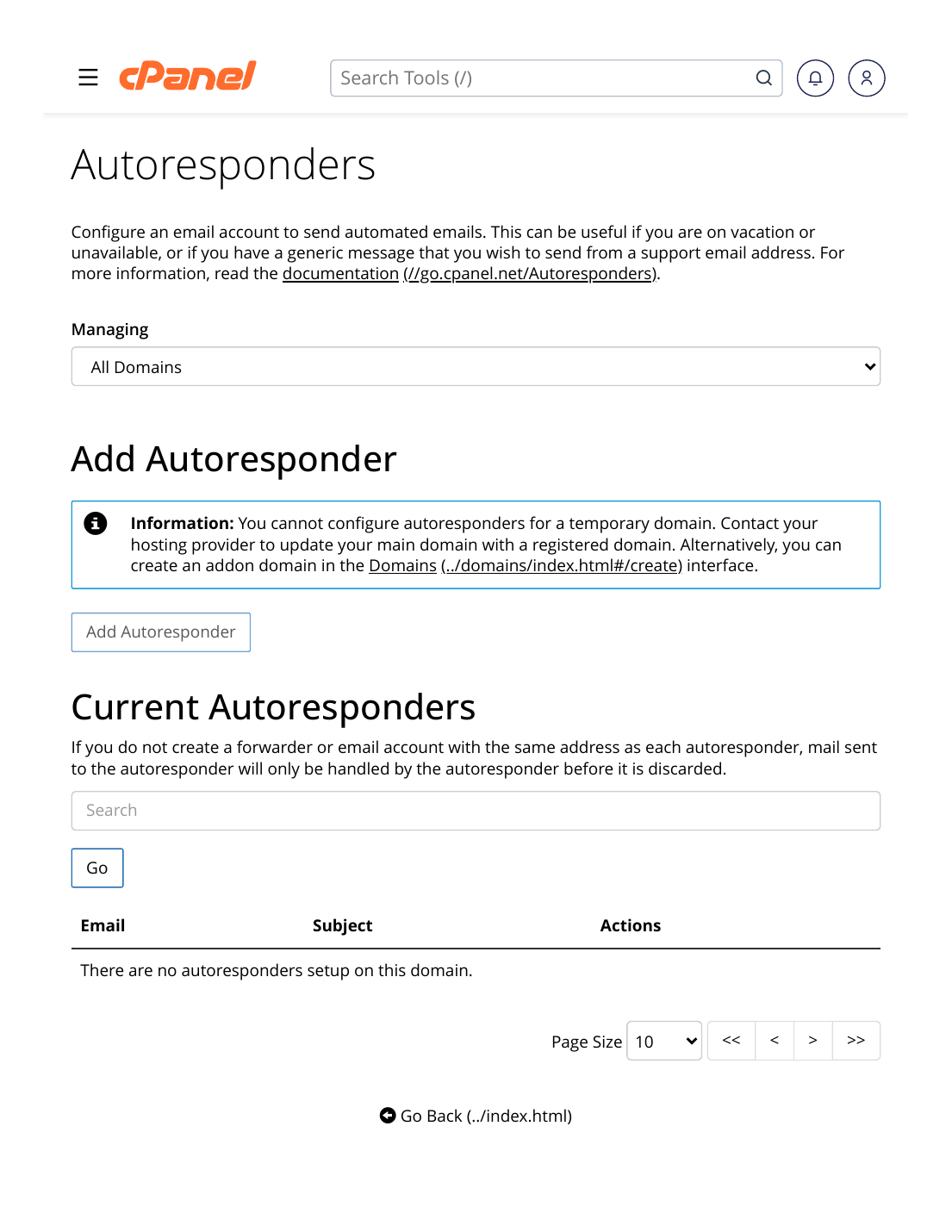
- Log in to cPanel → Email section → Autoresponders.
- Click "Add Autoresponder".
- Character Set: leave it as utf-8.
- Interval: set the hours to wait before replying again to the same sender (8 is sensible — it stops repeat senders getting spammed with your away message).
- Choose the email account this applies to.
- From Name: your name or business name, exactly as senders should see it.
- Subject: e.g. "Out of office — back on Monday" (you can use %subject% to include the sender's original subject).
- Body: type your message. Keep it short and helpful.
- Set Start and Stop — start "Immediately" or on a future date/time; stop on your return date so the responder switches itself off.
- Click "Create".
✅ Result: Anyone who emails that account in the active period gets your automatic reply once per interval — and their original email still lands in your inbox normally for when you return. Manage, edit or delete the responder any time from the Autoresponders list.
⚠ Common mistakes & fixes
- Forgetting to switch it off: always set a Stop date/time when creating it — future-you will forget, guaranteed.
- Interval set to 0: two autoresponders (yours and a customer's) can bounce replies to each other endlessly. An interval of several hours prevents loops.
- Too much personal detail: the reply goes to anyone who writes in — including strangers. Dates and an alternate contact are enough; skip travel details.
Related articles
- How to Create an Email Forwarder
- How to Create a Professional Email (you@yourdomain)
- How to Access Webmail