
WordPress powers a huge share of the world's websites — and on ZedgeHost you don't install it by hand. The Softaculous installer in cPanel does it in about five minutes: one form, one click, done.
✅ Before you start
- Log in to cPanel
- Your domain should be pointing to our nameservers (or use it anyway and go live when DNS settles)
- Decide your WordPress admin username and a strong password — never use "admin" as the username
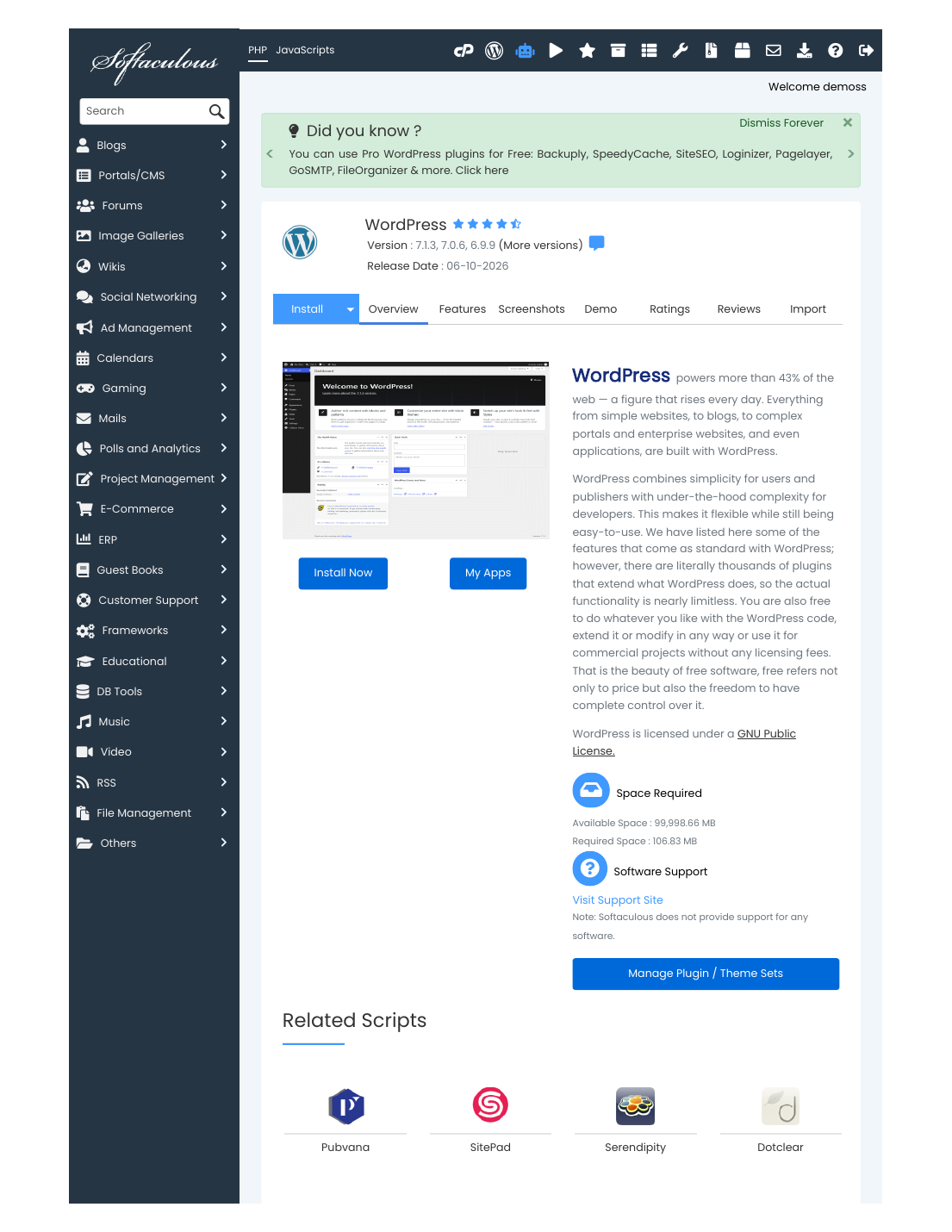
Steps
- Log in to cPanel → Software section → Softaculous Apps Installer.
- Click WordPress (it's on the Softaculous home screen) → Install Now.
- Choose the installation URL: protocol https://, your domain, and leave the directory empty if WordPress should BE your whole website (type a folder name like "blog" only if you want it at yourdomain.com/blog).
- Site Settings: enter your site name and a short description — both changeable later in WordPress.
- Admin Account: set the username, a strong password, and your real admin email (password resets go there).
- Choose the language and leave the advanced options at their defaults.
- Click "Install" and wait for the progress bar — usually under a minute.
✅ Result: Softaculous shows your new site address and the admin login link — yourdomain.com/wp-admin. Save the admin username and password somewhere safe right now, then log in and look around (next article: "How to Log In to WordPress Dashboard").
Tip: you can see and manage all your Softaculous installs (WordPress and others) later from cPanel → WordPress Manager by Softaculous — it also offers one-click admin login.
⚠ Common mistakes & fixes
- Installing into /wp or /blog by accident: if the directory field has a value, the site lives in that folder. Want it on the main domain? Reinstall with the directory EMPTY.
- Choosing http:// instead of https://: pick https from the start — your free SSL certificate makes it work, and changing later needs extra steps.
- Weak admin password: WordPress sites are attacked daily by bots trying common passwords. Use the password generator, and store it — don't reuse your email password.
Related articles
- How to Log In to WordPress Dashboard
- How to Secure Your WordPress Website
- How to Install a Theme & a Plugin