
Your WordPress Dashboard (wp-admin) is where you write posts, change the design and control everything. This article shows the login address, how to sign in, and what to do when you're locked out.
Steps: the normal login
- In your browser, visit: yourdomain.com/wp-admin (replace with your real domain). The login form opens.
- Enter the admin username and password you set during installation.
- Click "Log In" — the Dashboard opens.
Bookmark it: /wp-admin (or /wp-login.php) is always the door. If WordPress was installed in a folder, the address includes it — e.g. yourdomain.com/blog/wp-admin.
Forgot the password?
- On the login form, click "Lost your password?"
- Enter your username or the admin email — WordPress emails you a reset link.
- Open the email, set a new strong password, and log in.
No email arriving, or still stuck?
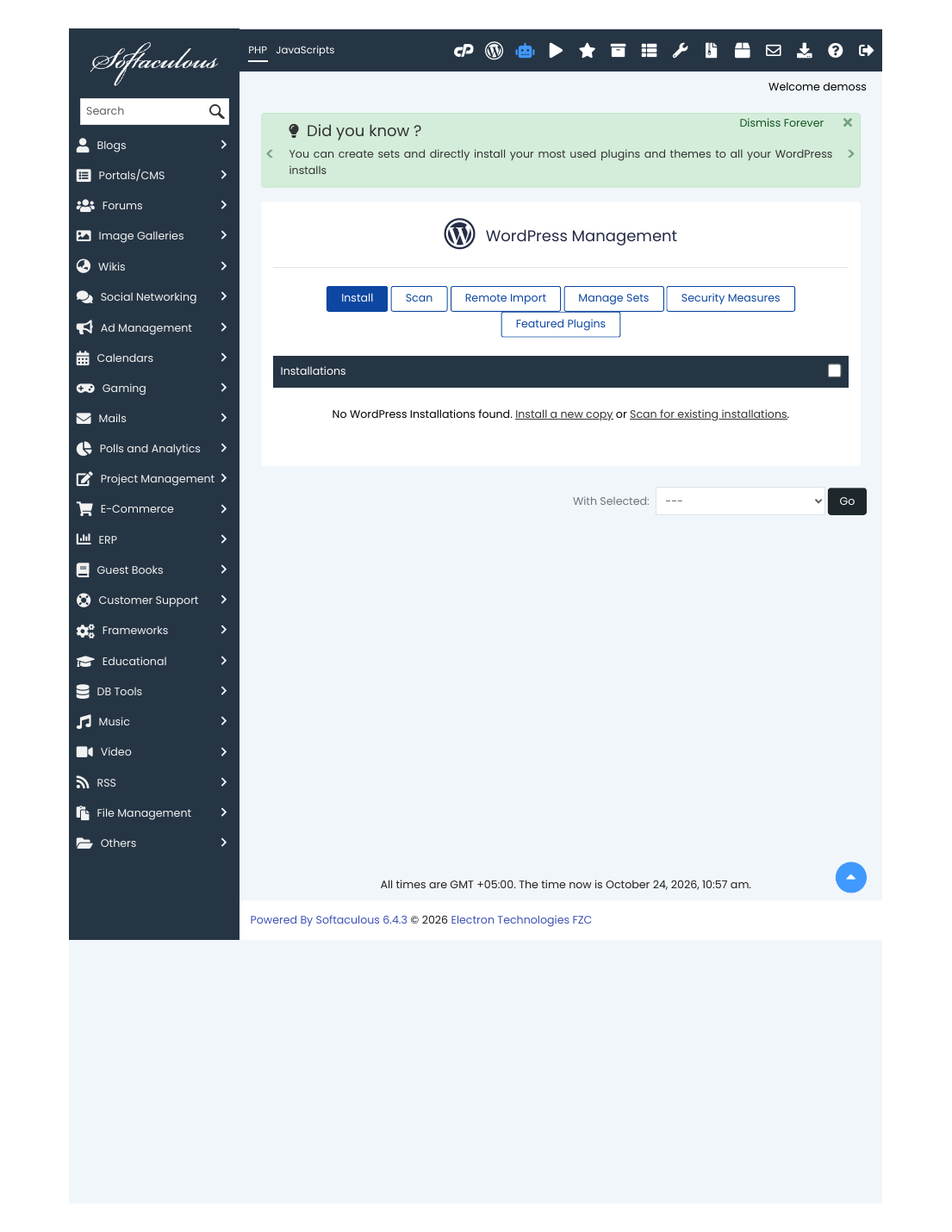
- One-click route: cPanel → WordPress Manager by Softaculous → your install → the admin login option signs you in without a password.
- Check spam for the reset email, and confirm the admin email in WordPress (Settings → General) is an inbox you can actually open.
✅ Result: You're inside the Dashboard — posts, pages, appearance and settings are all in the left menu. Everything WordPress from here on starts at this screen.
⚠ Common mistakes & fixes
- 404 on /wp-admin: WordPress may be installed in a subfolder (add it to the address), or not installed at all on this domain. Check Softaculous → Installations.
- Login page loops back: clear your browser cookies for the domain, or try a private window — a stale cookie is the usual cause.
- Using your cPanel or client-area password: WordPress has its OWN admin password. They're three different keys — keep them separate.
Related articles
- How to Install WordPress (Softaculous, 5 Minutes)
- How to Secure Your WordPress Website
- How to Update WordPress, Themes & Plugins Safely