
The File Manager is cPanel's built-in file explorer — your website's files in the browser, no extra software needed. This article covers the everyday jobs: upload, download, edit, extract, and staying out of trouble.
✅ The one thing to know first
- Your website lives in public_html — files placed there are public on the internet. Each additional domain has its own folder
- Log in to cPanel → Files section → File Manager
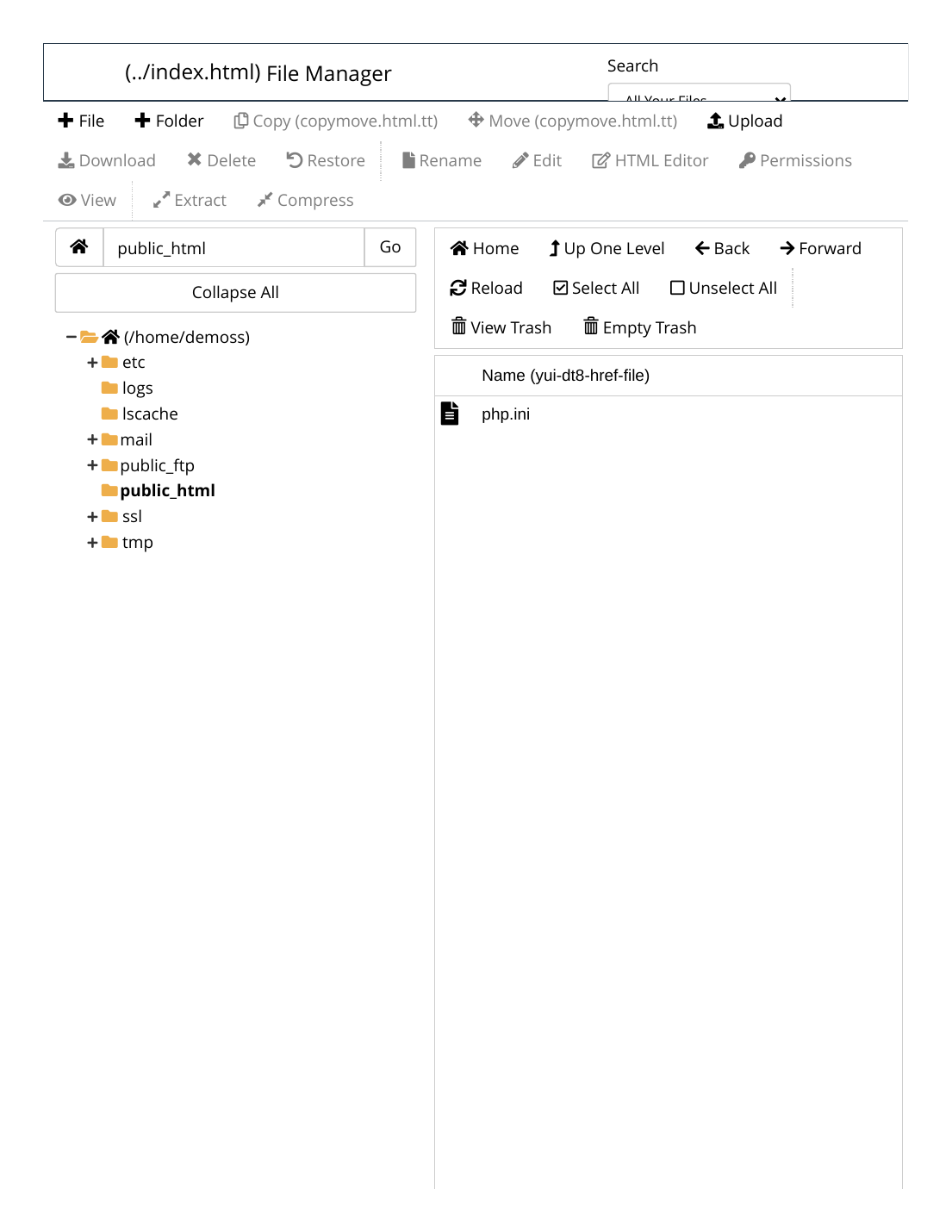
The everyday jobs
- Upload: open the folder → Upload button → drag the file in or select it. For website zips, upload the .zip here and extract it in place.
- Extract / Compress: right-click a .zip → Extract. Right-click files or folders → Compress to make a zip for download.
- Edit a file: right-click → Edit — text files like .htaccess, wp-config.php and index.html open in a simple editor. Save carefully; a typo in a config file can stop the site.
- Download: select the file → Download.
- Create: + File or + Folder buttons at the top.
- Delete: select → Delete. Deleted items go to the Trash — empty it from "View Trash" when you actually need the space back.
- Hidden files: files starting with a dot — .htaccess above all — are hidden until you tick "Show Hidden Files" in the Settings at the top right.
✅ Result: With upload, extract, edit and trash under control, you can run a website's files entirely from the browser — installing themes manually, fixing config files and cleaning up included.
⚠ Common mistakes & fixes
- Uploading a zip's CONTENTS scattered: extract first, then check whether the zip held a folder or loose files — sites end up one folder too deep and show an empty index page. Move the contents up one level if so.
- Editing wp-config.php or .htaccess without a copy: download the original first. If your edit breaks the site, re-upload the original and you're back in seconds.
- Deleting folders you don't recognize inside public_html: wp-content, wp-includes and wp-admin ARE WordPress. Rename suspicious things instead of deleting — a renamed folder can be renamed back.
Related articles
- How to Upload Your Website via FTP (FileZilla)
- How to Change File Permissions
- cPanel Tour: Understanding the Interface