
FTP moves files between your computer and your hosting with a dedicated app — faster and easier than the browser for many files or large uploads. This guide uses FileZilla, the free standard, but any FTP app takes the same details.
✅ Before you start — your FTP details
- Host: your domain name — if it doesn't connect yet, use ftp.yourdomain.com or the server address from your welcome email
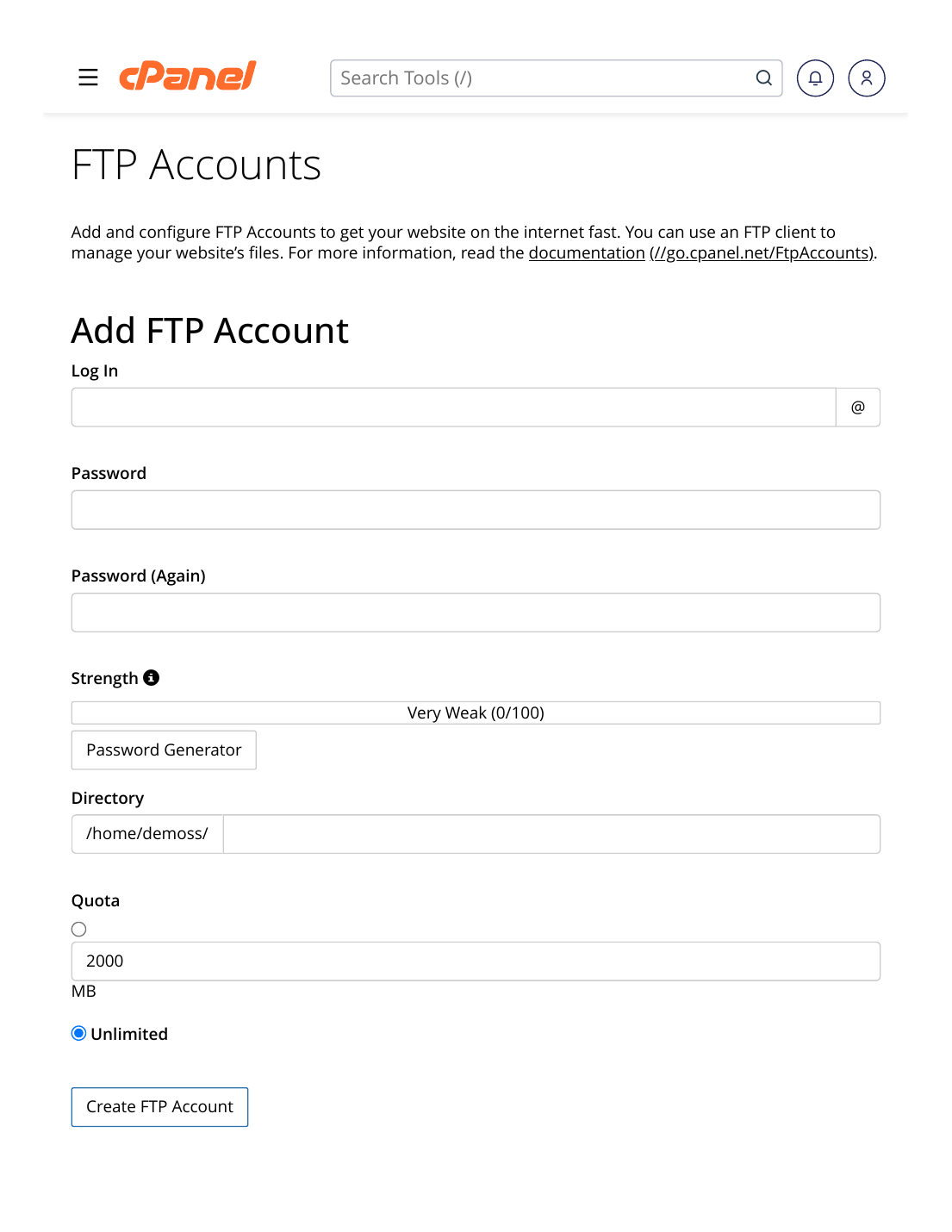
- Username & password: your cPanel username and password work for the main account. Separate FTP accounts can be created in cPanel → FTP Accounts
- Port: 21
- Upload folder: public_html is your website's root
Steps
- Download and install FileZilla (the Client) from filezilla-project.org — the official site only.
- Open FileZilla and fill the Quickconnect bar at the top: Host, Username, Password, Port 21 → Quickconnect.
- Accept the certificate prompt if one appears for encrypted connection — and prefer the encrypted option whenever FileZilla offers it.
- On the right side (the server), open public_html. The left side is your own computer.
- Drag your website files from left to right — or right-click files → Upload. Watch the bottom panel until every transfer succeeds.
- Open your domain in a browser and check the site loads.
✅ Result: Your files are on the server and the site is live. Save the connection in FileZilla's Site Manager and next time it's one click.
⚠ Common mistakes & fixes
- Uploading into the wrong folder: files placed outside public_html are not visible on the web. The site's index file must sit directly inside public_html.
- "530 Login incorrect": a wrong username or password — remember FTP accounts use their FULL name, like [email protected], and passwords are case-sensitive.
- Connection times out: check the host name and port first; then try again — and never enter your details into an FTP app downloaded from a random site.
- Uploading thousands of small files one by one is slow: zip them on your computer, upload the single zip, and extract it in File Manager.
Related articles
- How to Create an FTP Account for Your Developer
- File Manager Basics: Upload, Edit & Extract Files
- How to Move Your Website to ZedgeHost (Migration Overview)