
A developer needs file access for a few days — but your main cPanel password opens everything: email, databases, billing-adjacent settings, the works. The professional way is a separate FTP account, limited to the website's folder, deleted the day the work ends.
✅ Before you start
- Log in to cPanel
- Know which website folder the work is in — usually public_html, or a specific domain's folder
Steps
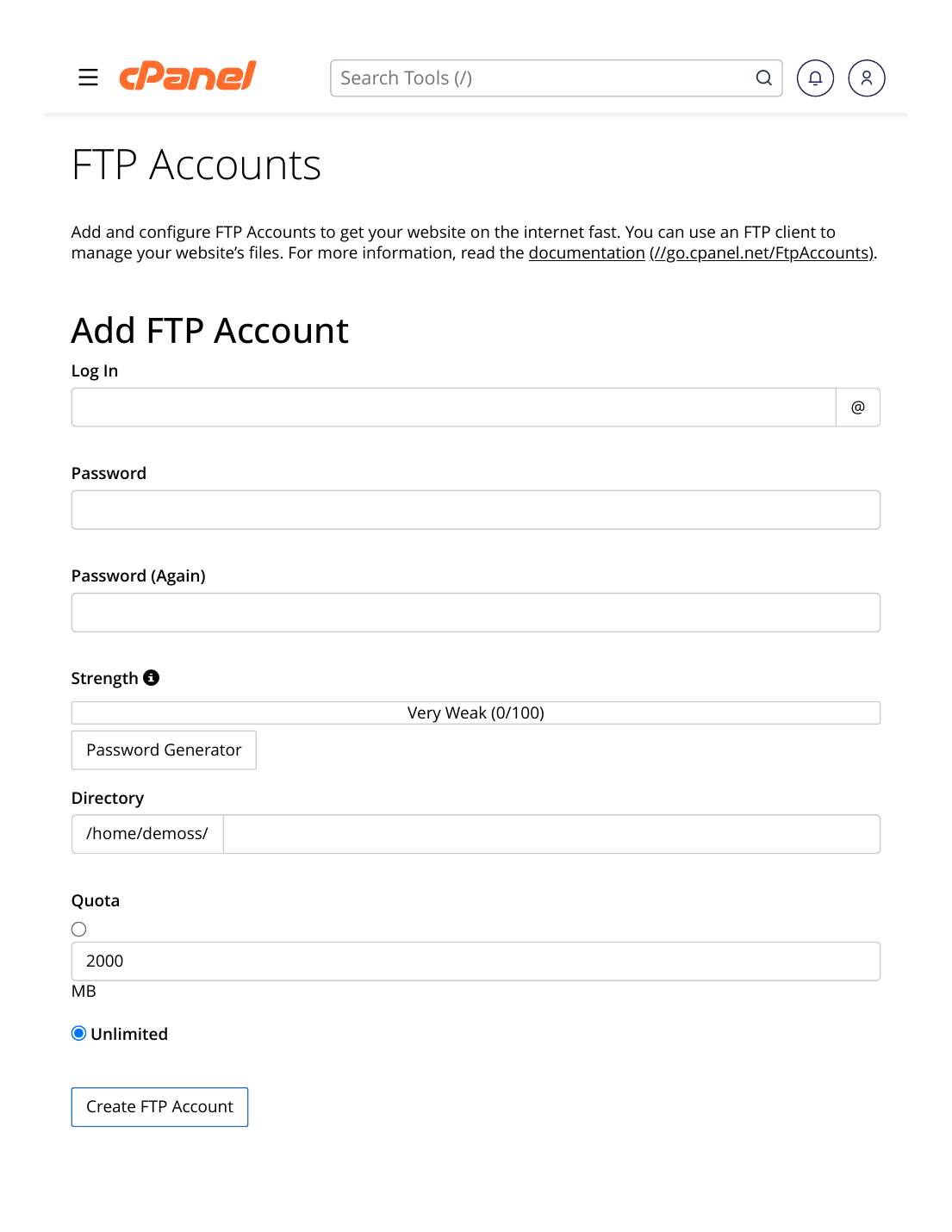
- cPanel → Files → FTP Accounts.
- Under "Add FTP Account", type a login name (e.g. dev) — the full username becomes [email protected].
- Set a strong password with the generator — this is what you will share with the developer.
- Set the Directory to the website's folder only — e.g. public_html. The account can see nothing above that folder.
- Leave the quota on Unlimited unless you have a reason to cap it.
- Click "Create FTP Account" and send the developer: host (your domain), the full username, the password, and port 21.
- When the work is finished: come back here and Delete the account (the files stay — only the login goes).
✅ Result: The developer works freely inside the one website folder — and can never wander into your email, other sites or account settings. Access ends the minute you delete the account.
⚠ Common mistakes & fixes
- Sharing the main cPanel login "just for today": there is no un-sharing a master password. If you already did, change the cPanel password now (see the passwords guide) and use a proper FTP account next time.
- Leaving the directory as the account root: the default may expose more than the one site. Always scope it down to the single folder.
- Forgetting to delete afterwards: put the deletion on your calendar the day you create the account. Old access that nobody uses is pure risk.
Related articles
- How to Upload Your Website via FTP (FileZilla)
- How to Make Your Accounts Secure (Strong Passwords, 2FA)
- File Manager Basics: Upload, Edit & Extract Files