
cPanel is the control panel for your hosting account — files, domains, email, databases and security all live here. This tour shows you where everything is, so you never feel lost.
✅ Before you start
- Log in to cPanel (see "How to Log In to cPanel (3 Ways)")
- Our servers use the modern Jupiter theme — the tool names below are the exact ones on your account
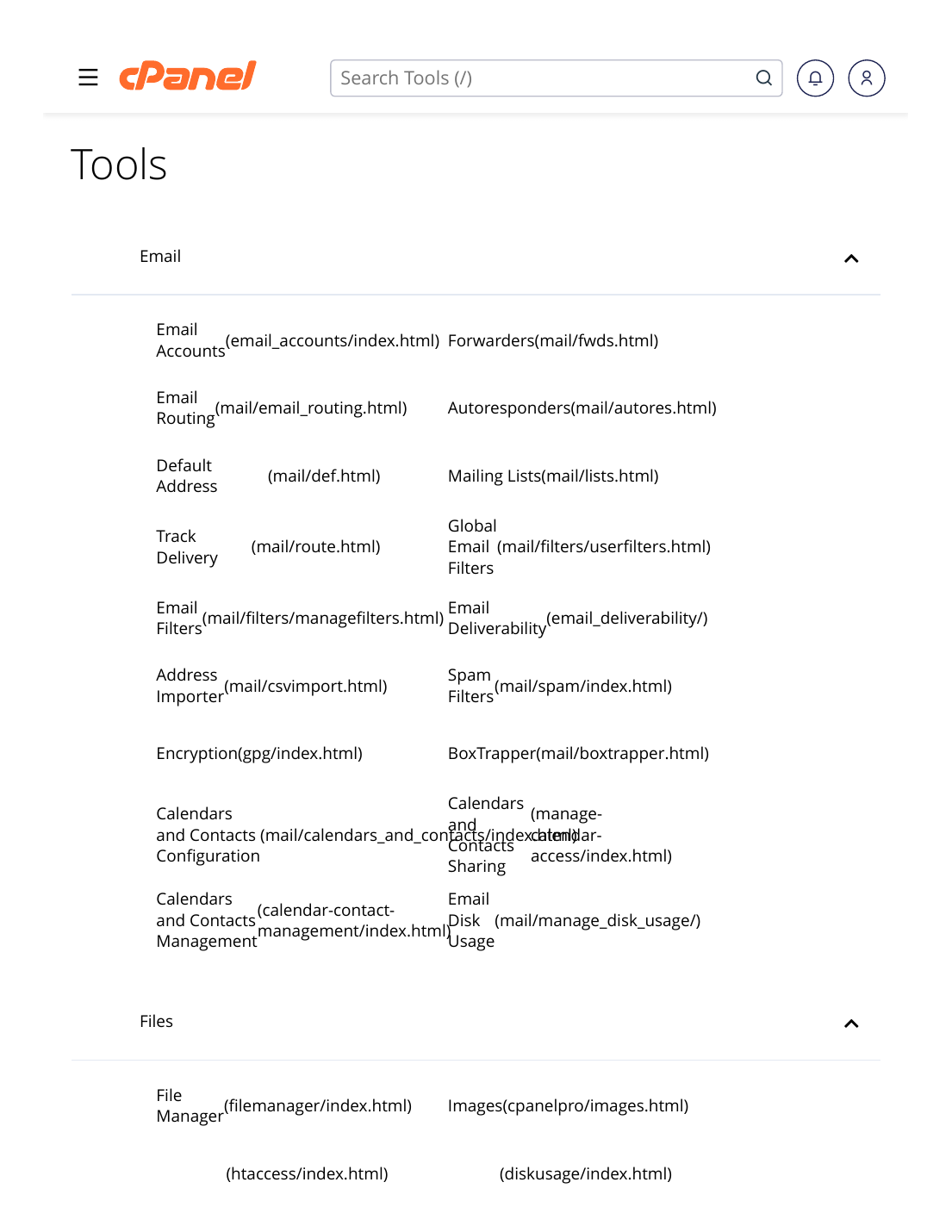
The sections, in order
- Email: create email accounts (you@yourdomain), forwarders, autoresponders, spam filters — and Email Deliverability (SPF/DKIM/DMARC).
- Files: File Manager for uploading and editing files, FTP Accounts, Disk Usage — and your backups: Backup, Backup Wizard and JetBackup 5.
- Databases: create databases in Manage My Databases, manage them with phpMyAdmin, or use the Database Wizard for a guided setup.
- Domains: one Domains tool manages your main domain, addon domains and subdomains. Redirects and the Zone Editor (DNS records) are here too.
- Metrics: visitors, bandwidth use, error logs and resource usage.
- Security: SSL/TLS Certificates, the Lets Encrypt SSL tool for free certificates, IP Blocker, Hotlink Protection and Imunify360.
- Software: the tools you'll use most — Softaculous Apps Installer (1-click WordPress), Select PHP Version, and WordPress Manager.
- Advanced: Cron Jobs, Error Pages, Indexes and LiteSpeed cache managers — for experienced users.
- Preferences: your cPanel account settings, contact information and language.
Finding tools fast: use the search box at the top of cPanel. Type part of a tool's name — for example "php" or "backup" — and click it in the results. Much faster than scrolling.
Your account at a glance: the sidebar on the cPanel home page shows your primary domain, home directory, and how much disk space, bandwidth and email accounts you've used. Check the disk usage bar regularly — a full disk stops email and uploads from working.
Related articles
- How to Log In to cPanel (3 Ways)
- How to Change Your PHP Version
- How to Use cPanel File Manager